Mac developer tips I keep using
Wataru Watanabe · w22 digital lab · October 9, 2026
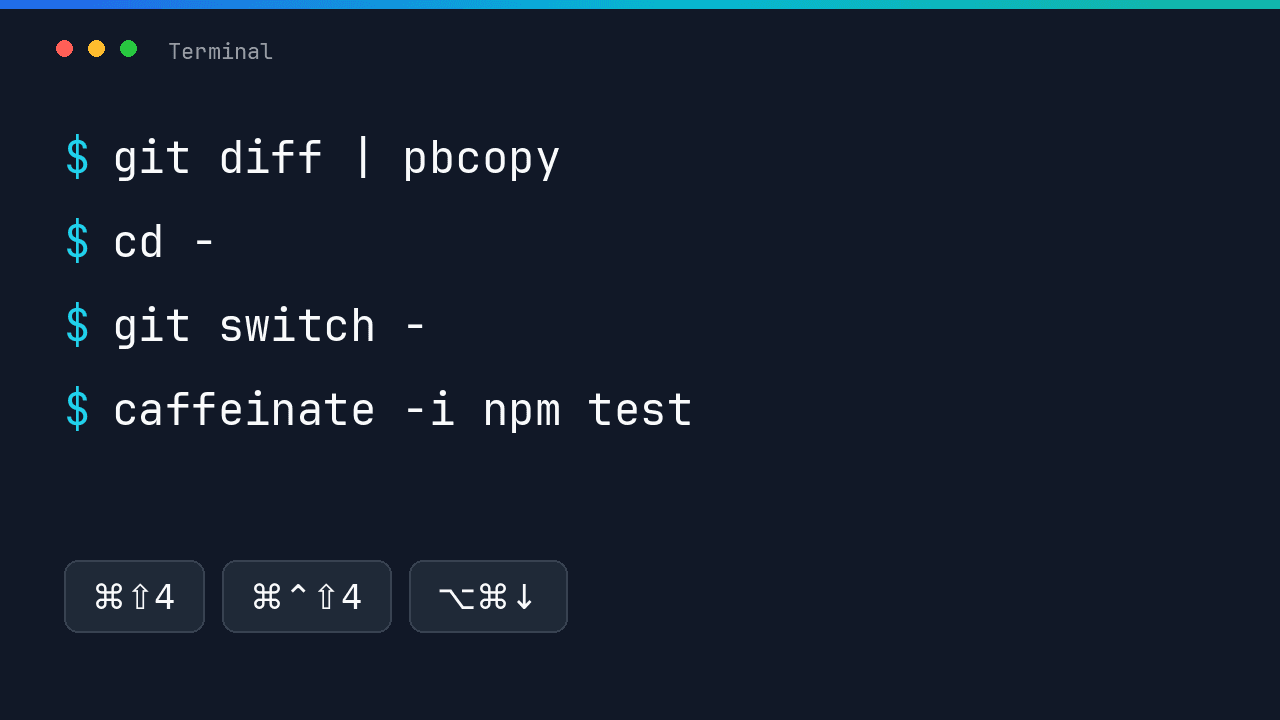
These are small macOS habits I use on a normal dev day. Each one ships with the system, or with an editor I already have open. None of them need another menu bar app.
- Clipboard from the terminal
- Jump back a directory or a branch
- Screenshots for bug reports
- Keep the Mac awake for one command
- Finder from the terminal, and back
- Multi-cursor in VS Code
- Where the throwaway text goes
Clipboard from the terminal
pbcopy and pbpaste ship with every Mac. I pipe into the clipboard, or out of it, without touching the mouse.
git diff | pbcopy
pbpaste | jq .
pbpaste > notes.txt
jq is not part of macOS. When I want pbpaste | jq ., I install it separately, for example with brew install jq.
Jump back a directory or a branch
Two go-back commands cover most of the bouncing I do during a review.
cd -            # previous directory
git switch -    # previous branch
cd - works in zsh and bash. git switch - needs Git 2.23 or newer, which is when git switch landed. I use the pair to move between main and a feature branch without retyping either name.
Screenshots for bug reports
The shortcuts I actually remember:
- ⌘⇧4, then Space, captures one window.
- Hold ⌥ while clicking that window and the shot has no drop shadow.
- Add ⌃ — ⌘⌃⇧4 — and the shot goes straight to the clipboard. No file on the Desktop.
- ⌘⇧5 is where I set the folder screenshots save into, when I do want a file.
Keep the Mac awake for one command
A long test run is a bad time for the machine to sleep. caffeinate is built in. -i keeps the system awake only until that command exits.
caffeinate -i npm testAdd -d when the display should stay on too: caffeinate -di npm test. No extra app.
Finder from the terminal, and back
open .               # current folder in Finder
open -R file.log     # reveal the file in Finder
qlmanage -p img.png  # Quick Look preview
In a Finder window, ⌘⇧. toggles hidden files such as .env and .git. The same shortcut works in Open and Save dialogs.
Multi-cursor in VS Code
These are the macOS defaults. If you changed the keybindings, they will not match.
- ⌥⌘↓ and ⌥⌘↑ add a cursor below or above.
- ⌘D selects the next match of the current word.
- ⇧⌥ and drag is column selection.
I use them when a list of ids, or a stack of JSON keys, all need the same edit.
Where the throwaway text goes
The commands above move text around. They do not give me a place to park a snippet that is not ready for a file. A Slack DM to myself, an untitled VS Code tab, and Notes all get used for that, and all of them are awkward in the middle of something else.
I built c0depad for that gap: a tiny Mac code pad on a global hotkey. It stays on top, keeps scratch text across restarts, and stays out of the git tree. The site is c0depad.w22.dev.